1.Choose the option to display between Used, Spare, In Service on the bottom right of the screen.
2.There is also the option to see if there is not much capacity with the Mark heat items.
This is percentage is configurable in the Advanced Settings COG.
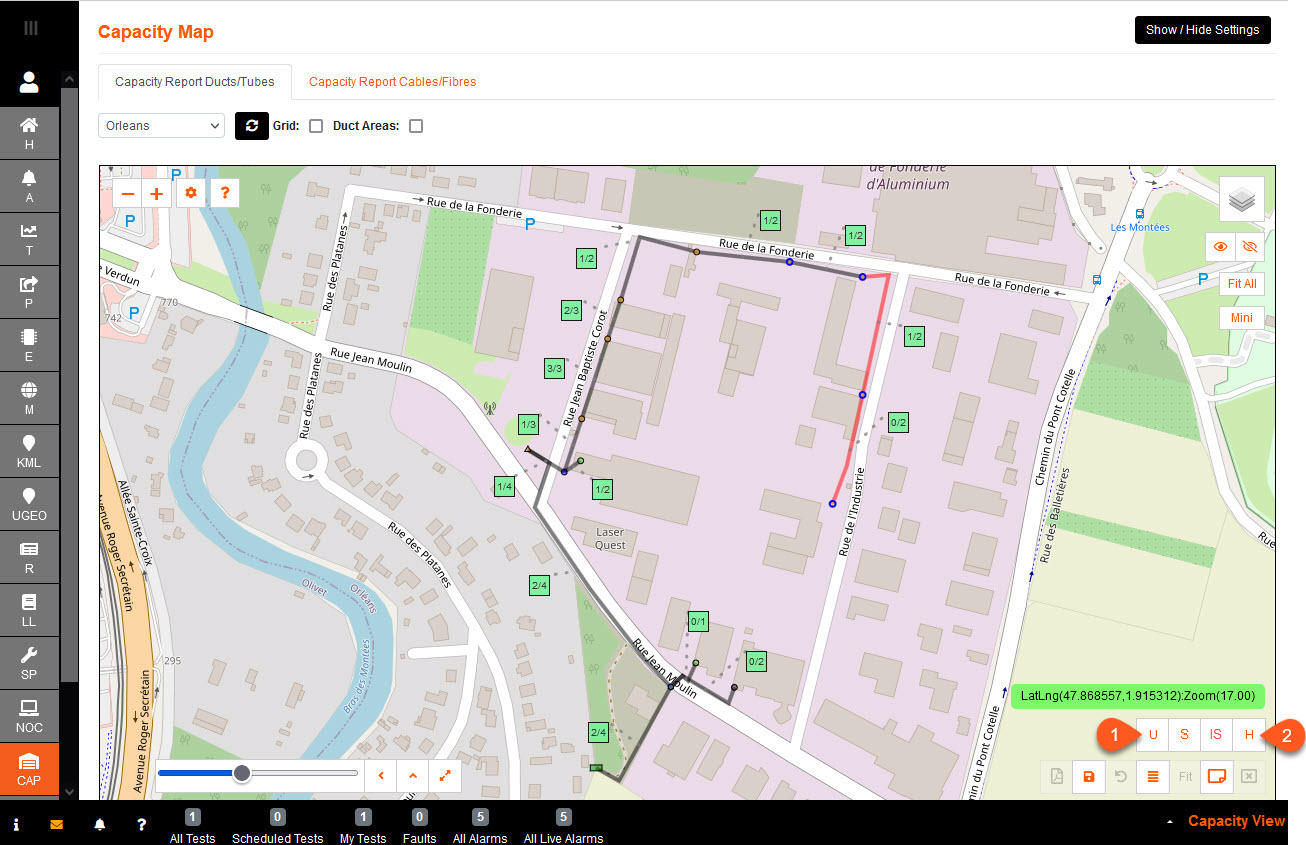
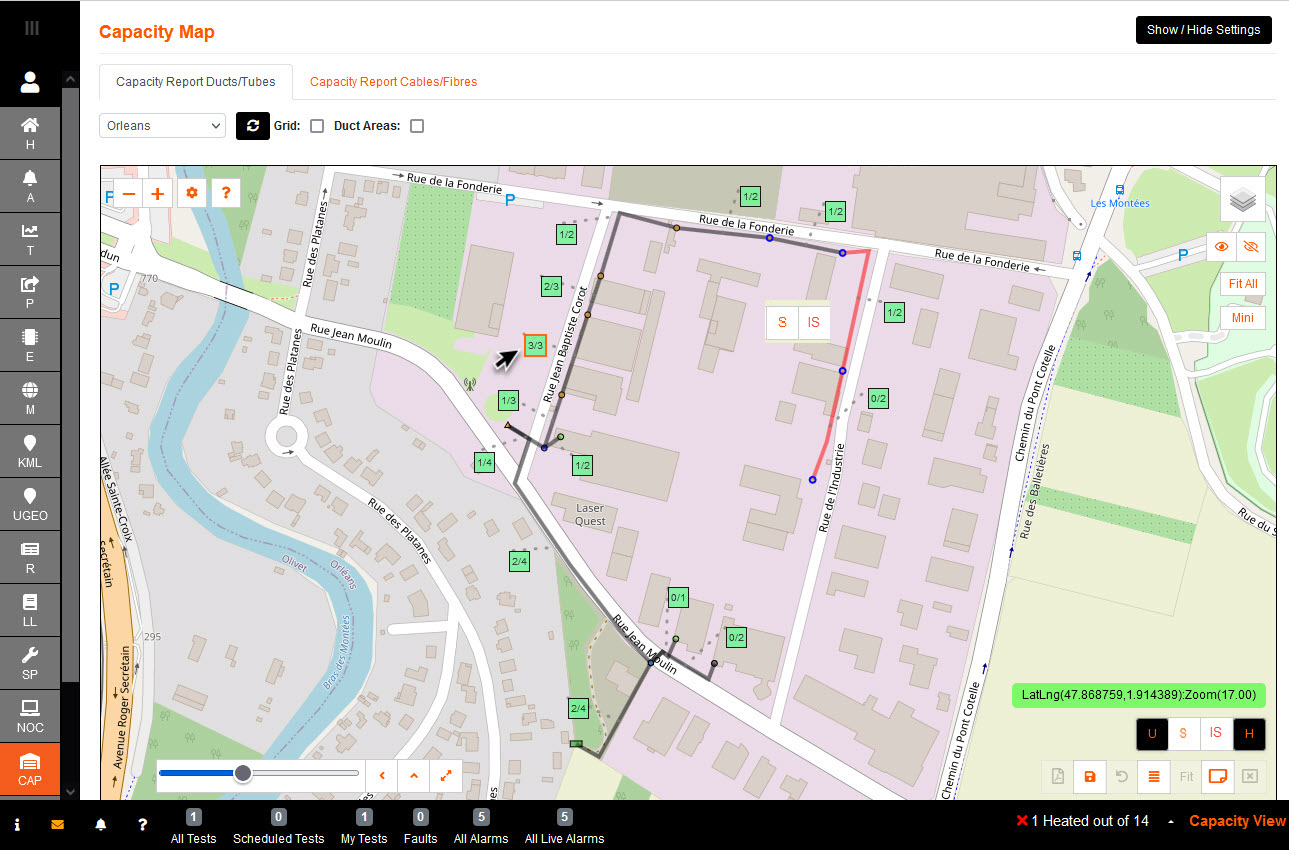
Below is 'Used' with one duct flagging a potential issue using the specified 70% Capacity Percentage Heat (%).
You can print a PDF in one page as presented on the bottom right.
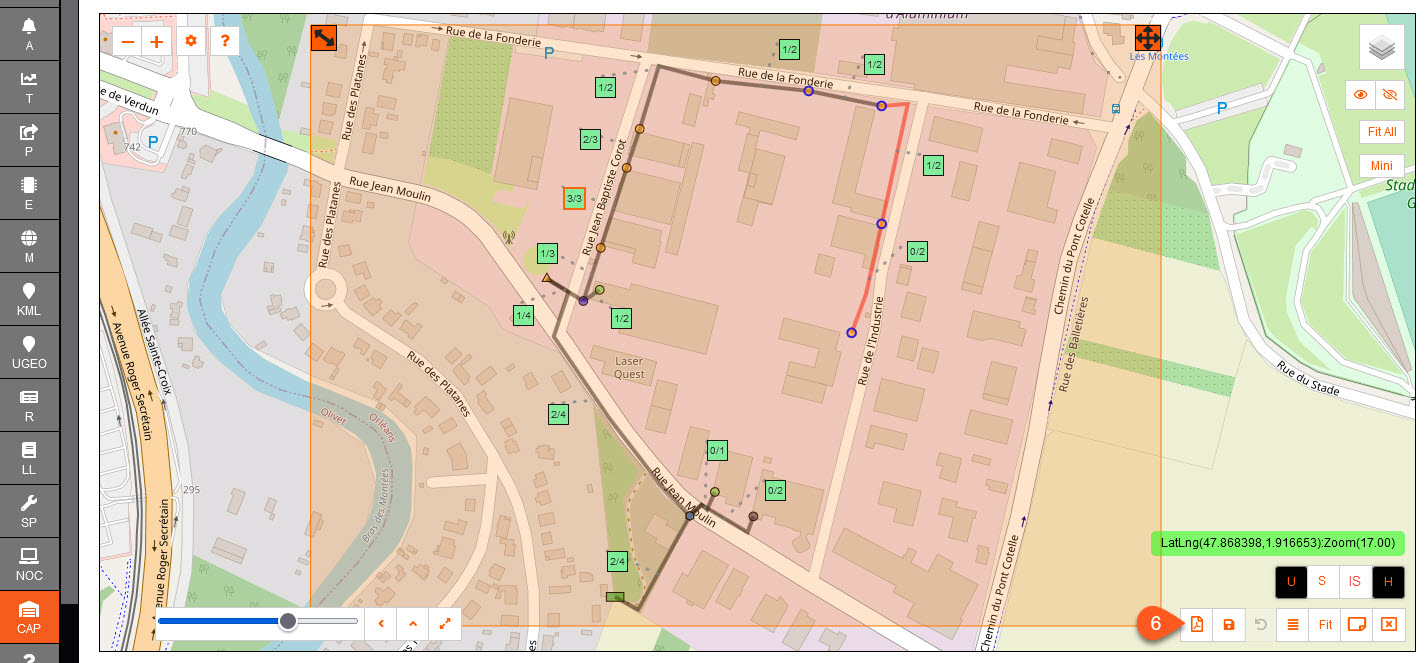
3. Move the labels for optimum view, or use the Auto Label for auto adjustment.
4. Save the label position.
5. Place A4 landscape outline to show print area on map. Adjust.
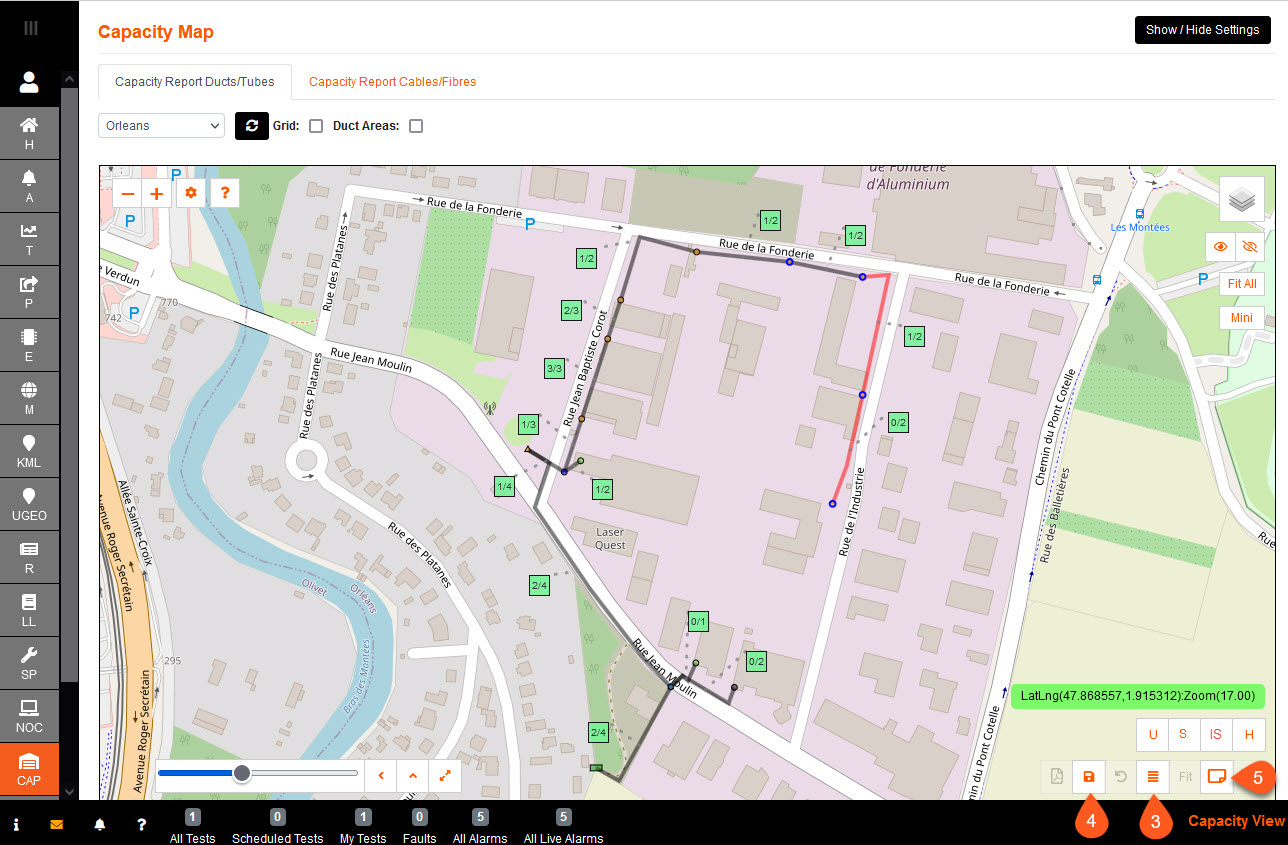
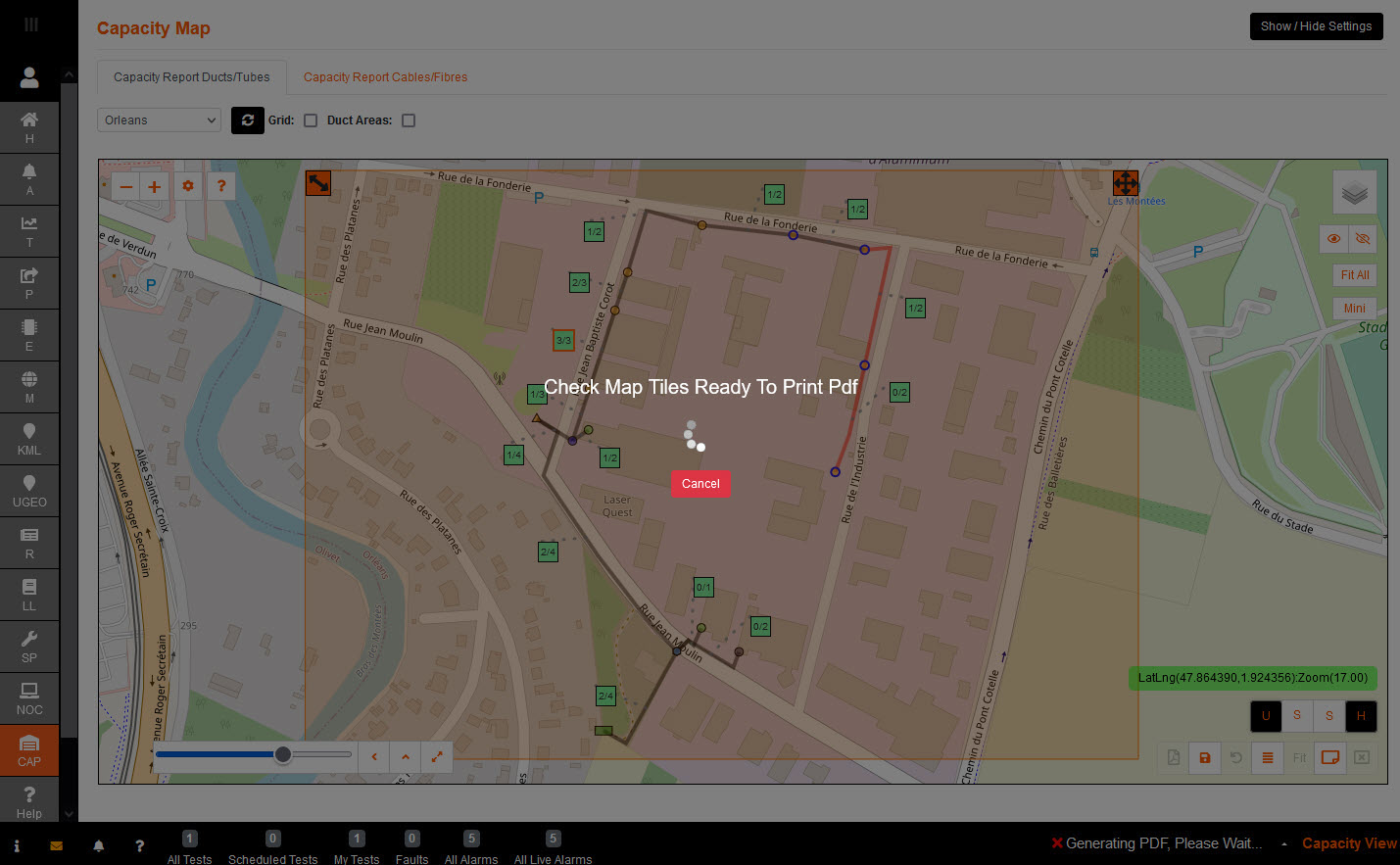
6. Start print to PDF
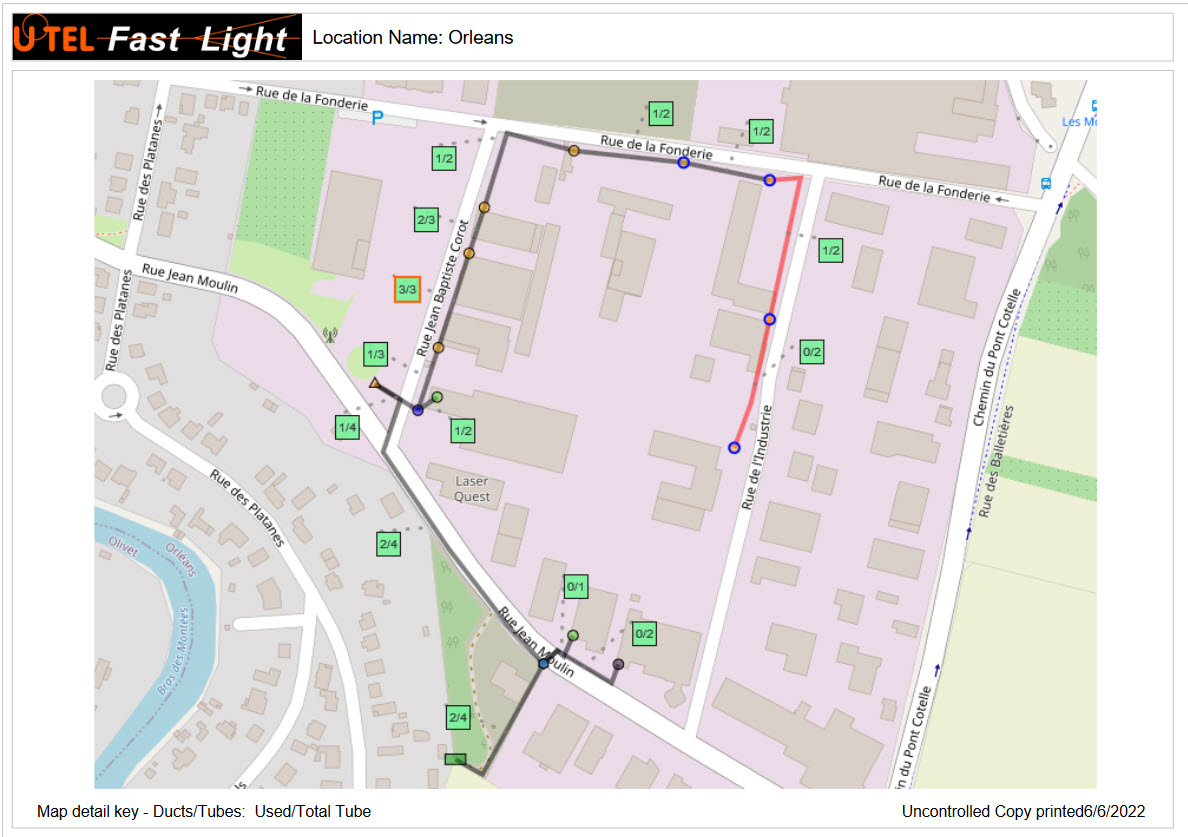
You can print PDF using the Grid function.
7. Tick the grid box, located next to the refresh.
8. Use the slider bar to choose the number of pages.
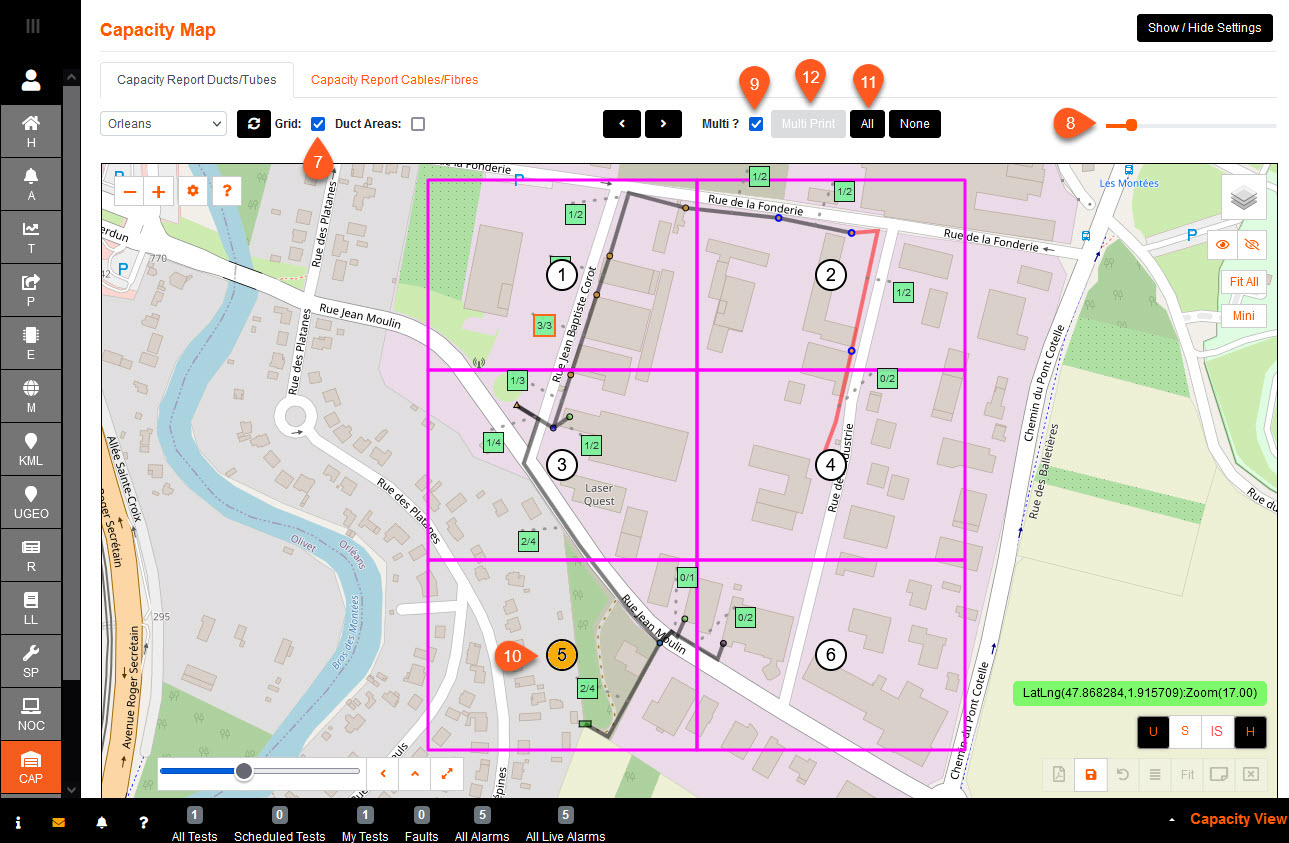
9. Tick the Multi? to use the multiple print option.
10. Select the pages that are required
11. There is a quick 'Select All', alternately 'None' to clear.
12. Select Mulitprint to process the PDF.
The screen will grey out, then a prompt to save/open the PDF.
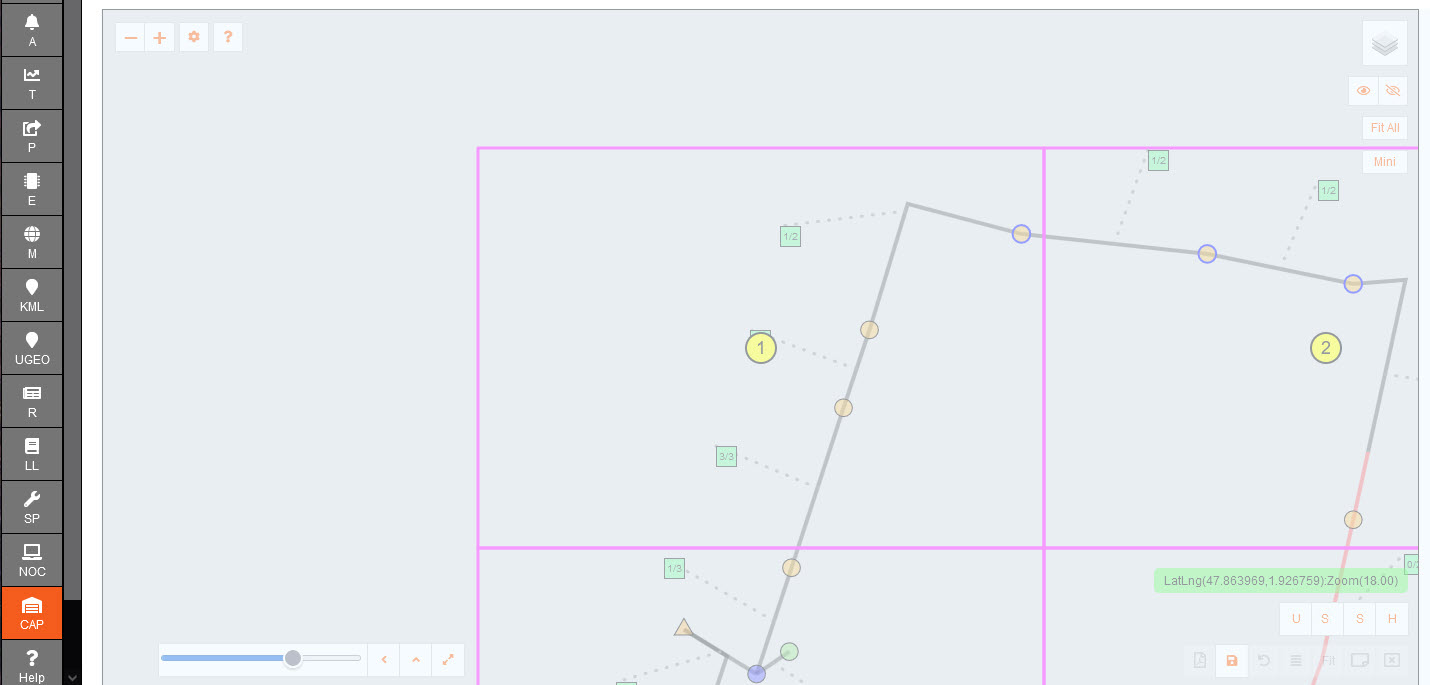
The PDF will comprise of the pages selected for print, along with a cover page of the grid areas.
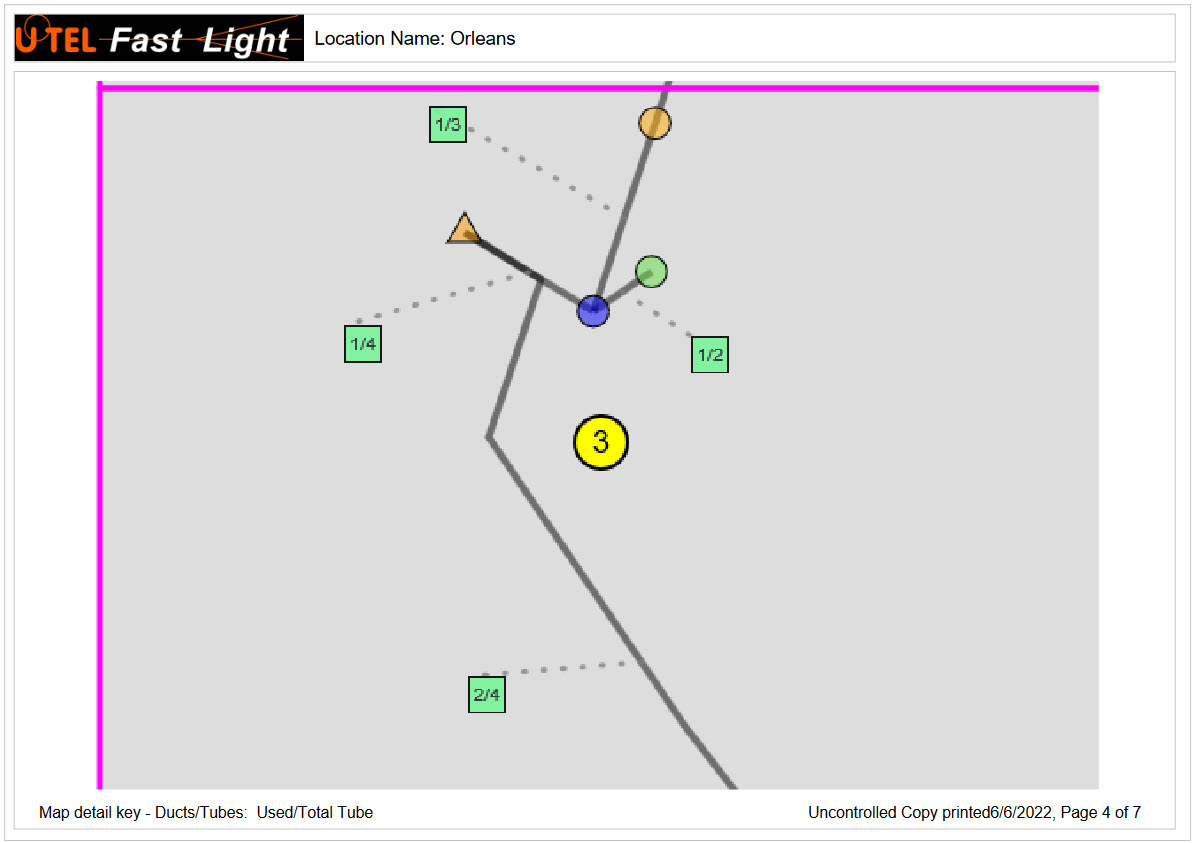
The PDF will also have a note of Map detail key (i.e: Ducts/Tubes: Used/Total Tube).