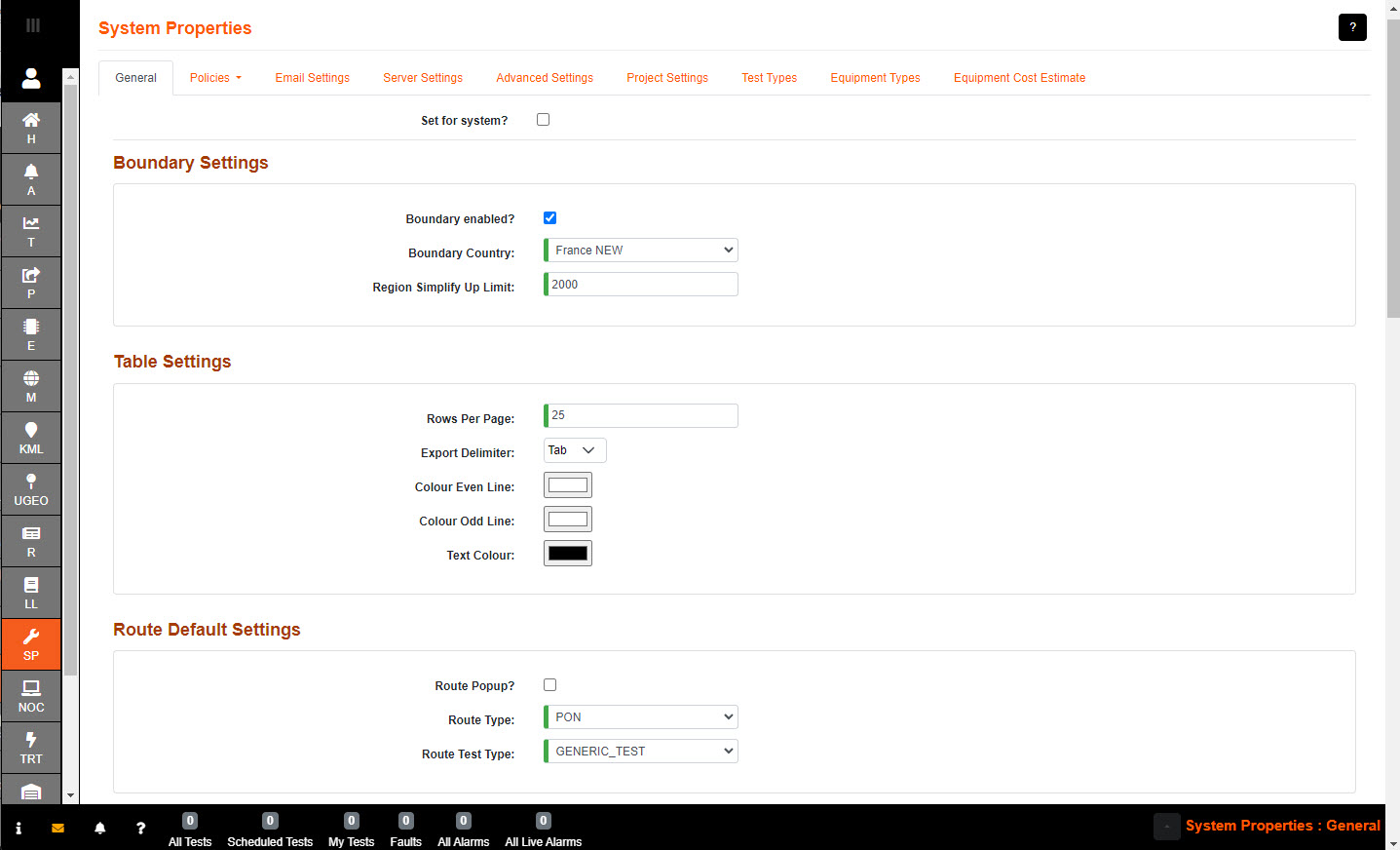
Set for system? when ticked; the properties set will save to the whole system, but won't override each User Preferences that has been saved.
Boundary Settings:
Boundary enabled when ticked; the user will only be able to view the Country selected in the Boundary Country selection.
Each Country created in the System will be added to the drop down menu.
Region Simplify Up Limit sets the maximum number of points setting a boundary outline, the default set to 2000 [min 100, max 50000]
Table Settings:
Rows per page is a table row view preference, the default is set to 25 rows [Max 250].
Export Delimiter allows user to export in either Comma, Semi Colon or Tab format.
Colour odd or even line allows user to set up the table in order to ease the viewing of each item.
Text Colour change the color of the systems text, default is set to Black.
Route Default Settings:
Route Popup? allows the user to enter a name, rather the default switch name and the moment of saving connections.
Route Type select the default Route Type to be used when auto-creating route(s).
Route Test Type select the default Test Type to be used when auto-creating route(s).
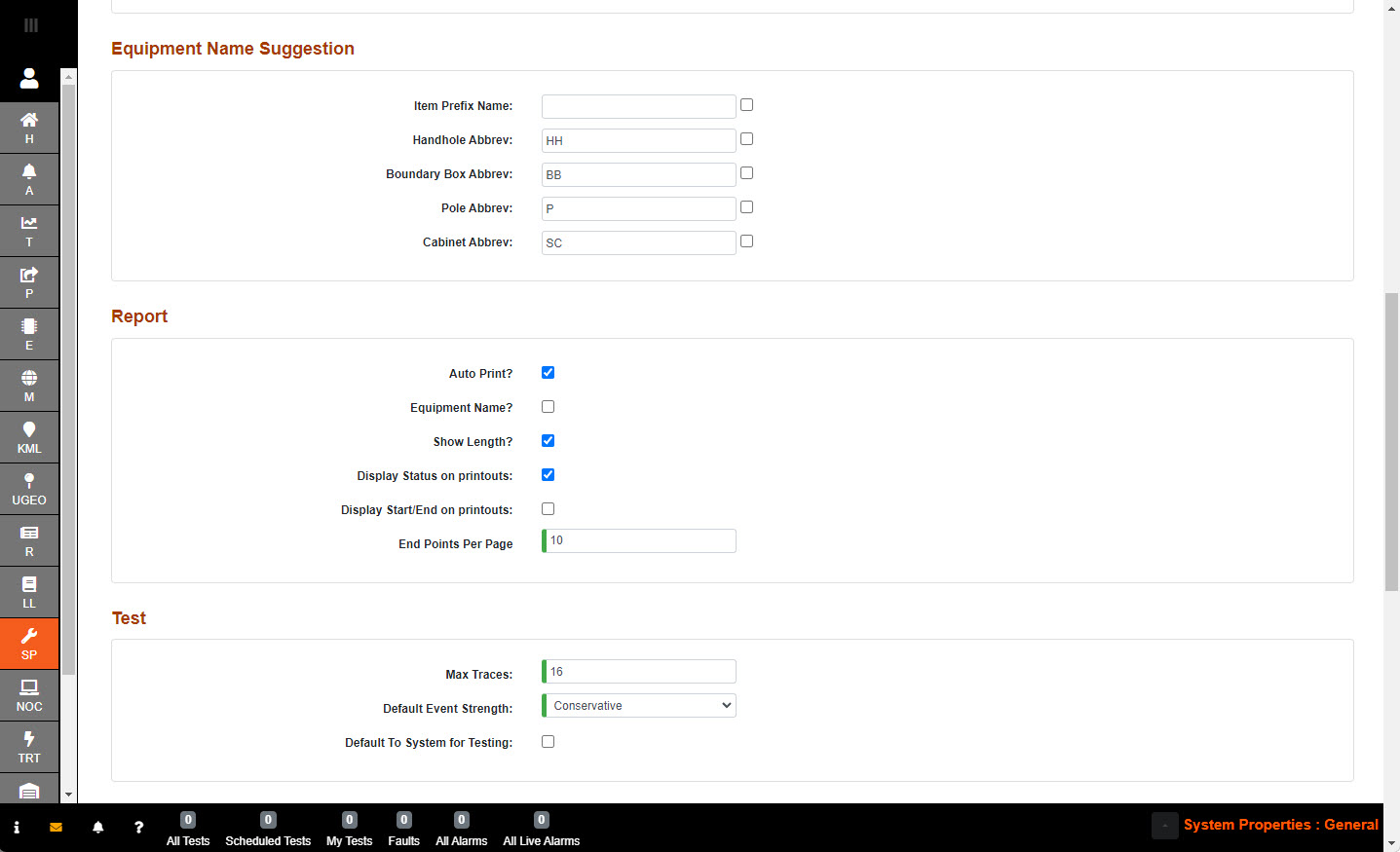
Equipment Name Suggestion:
Item Prefix Name option to add a unique identifier to following equipment in order to easily identify a grouping.
Handhole Abbrev option to have a default abbreviated prefix as part of the item prefix name when creating handholes.
Boundary Box Abbrev option to have a default abbreviated prefix as part of the item prefix name when creating boundary boxes.
Pole Addrev option to have a default abbreviated prefix as part of the item prefix name when creating poles.
Cabinet Abbrev option to have a default abbreviated prefix as part of the item prefix name when creating cabinets.
Report:
Auto Print? when ticked; the auto print functionality will be processed, bypassing the user input of setting up print area and labels.
Equipment Name? when ticked; will show equipment name on label, instead of item name.
Show Length? when ticked; will show length when applicable.
Display Status on printouts when ticked; allows the Network Status, and Operational Status, of the item to be included in the table on the printouts.
Display Start/End on printouts when ticked; allows the Start and End of the item to be included in the table on the printouts.
End Points Per Page The number of end points to print per page. This is helpful for the SLD auto printouts.
Test:
Max Traces is the maximum number of traces that a user can select to display on the same trace screen, default is set to 16 [Max is 128]
Default Event Strength Select the default filter on the events trace table.
Default To System for Testing when ticked; Testing (T) will always navigate to the System node, or Country node when boundary is enabled.
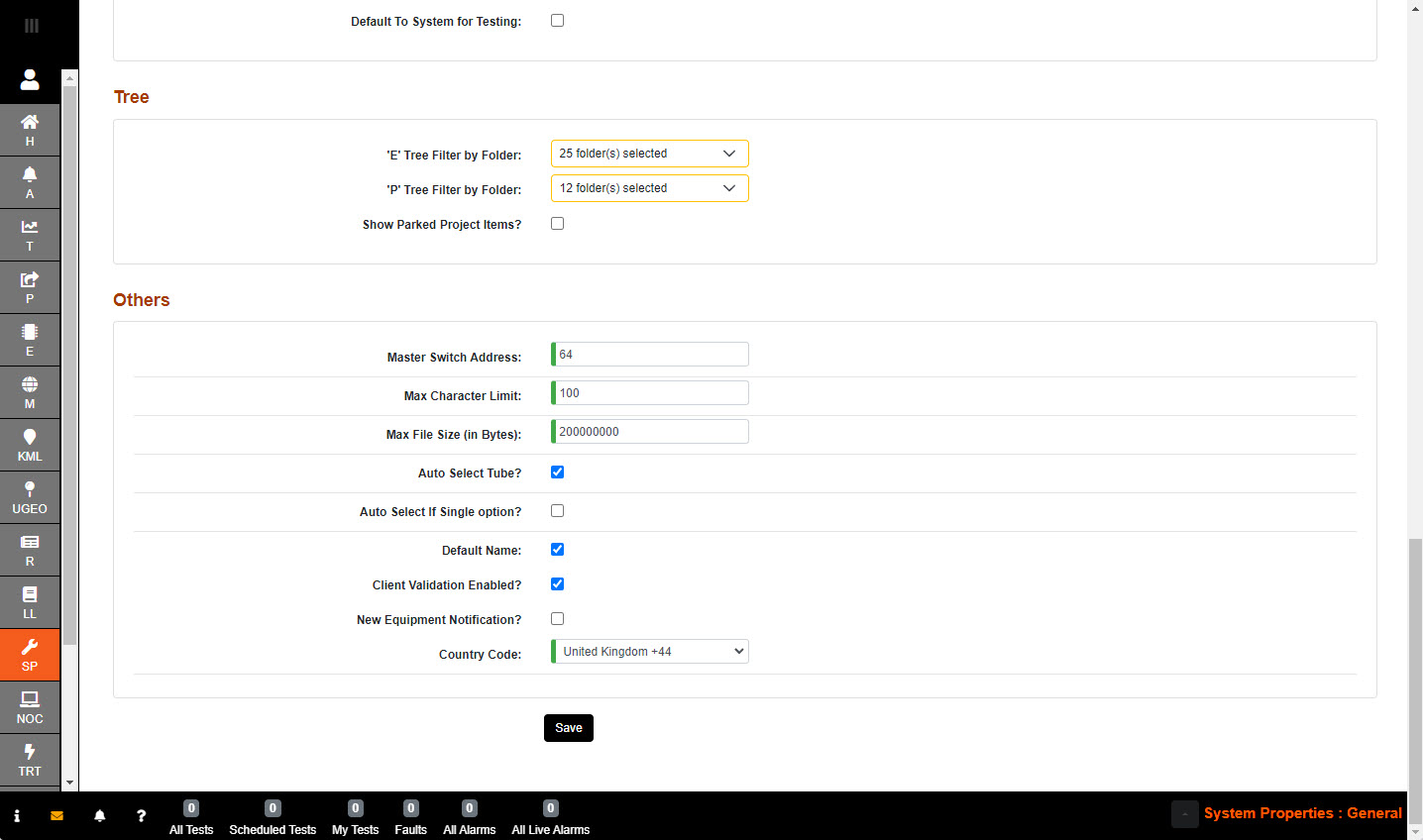
Tree:
'E' Tree filter by folder selects which items to be seen in the 'E' tree.
'P' Tree filter by folder selects which items to be seen in the 'P' tree.
Show Parked Project Items? parked items will be visible in the system.
Others:
Master Switch Address Logical address, of the Primary Switch, is configurable to company preference, default is set to 64 [Max 191]
Max Character Limit is the length allowed for pop-up titles in Map, the default is set to 100 [Max is 200].
Note:
'Display Name' fields have a character limit of 150 characters.
'Name Abbreviations' and 'Prefix' fields have a character limit of 12 characters.
'Abbreviation' field has a character limit of 32 characters, but 4 is advised.
'Notes' field has a character limit of 4000 characters.
Max File Size (in Bytes) is used to set to the size limit for an uploaded file. The max allowed is 5GB.
Auto Select Tube? when ticked; allows an automatic selection of the first available tube in each path when creating cables.
Auto Select if Single option? when ticked; allows an automatic selection of the only choice available.
Default Name when ticked; allows the system to automatically fill in names for items, using Abbreviation (or Type Name) from equipment table, or start and end points for cable.
Client Validation Enabled? when ticked; an initial check will be enabled by catching invalid data on the client-side, and the user is forced to fix it straight away.
New Equipment Notification? when ticked; allows the user to get a pop up when new equipment gets added via alarm receiver.
Country code needs to be set to the area the user will be receiving alarm notifications to, when SMS is supported.
Save sets new preferences.