When a fault is found during a test, an alarm will be flagged to you. This will appear in the Alarm Overview and All Alarms pages. It will also increment the number of alarms in the panel at the bottom of the screen.
Each alarm has its own row in the table below, with its own set of unique information. Clicking on an alarm in the table will open the Alarm Details page which is described later in this guide.
1.The Equipment / Network column tells you which piece of equipment, or which part of the network, has flagged up the alarm.
2.State gives information on the alarm status. Outstanding is the first state and is caused by a fault found in a test, still waiting for a person to intervene. Once an Outstanding alarm has been accepted, the alarm state will change to Accepted. Once you run the same test again and there is no longer an alarm flagged up on that piece of equipment or network, the previously Outstanding or Accepted state will change to Resolved.
3.Date that the alarm was created.
4.Source is from which area flagged the alarm.
5.The Alarm Type will either be an Equipment or Network Alarm.
6.This is the user who ran the test, which resulted in an alarm.

7.You can open the tests in an external program or save them in a document by pressing export button indicated by the up and down arrows icon, then selecting either Export page or Export all data.
8.Next to the export button is the Refresh button which allows you to load any new entries.
9.Ticking Auto Refresh will automatically refresh the page with new alarms at regular intervals. Otherwise, you will need to refresh the page manually with the Refresh button.
10. Clicking on the POP location hyperlink will take you to the Element Manager, displaying the location of the equipment or network associated with.

11. You can tick the box on the left of a row to highlight the entire row.
12. When a box is selected, the Acknowledge Selected button becomes available and will allow you to move the state to the next stage.
Outstanding changes to Accepted and Resolved will be cleared.
Accepted remains Accepted until proven to work correctly. This is described in more detail later.

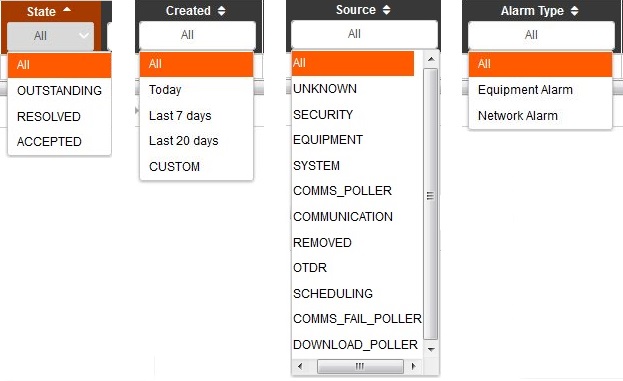
The drop downs can be filtered by the following options.