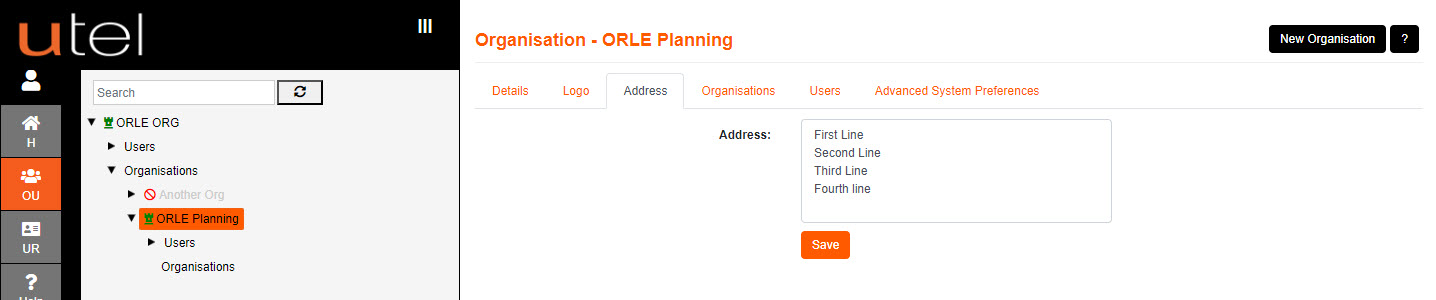
Select your Organisation in the tree.
Select New Organisation button on the top right of the screen, or Organisations from the Tree
Enter an Organisation Name.
Entry boxes that have an orange outline indicates that the info cannot be modified once added.
When you have done this, the Add box will change to orange to allow you to save the entry.
If you would like to disable the Organisation to make it inactive, un-tick the Enabled box.
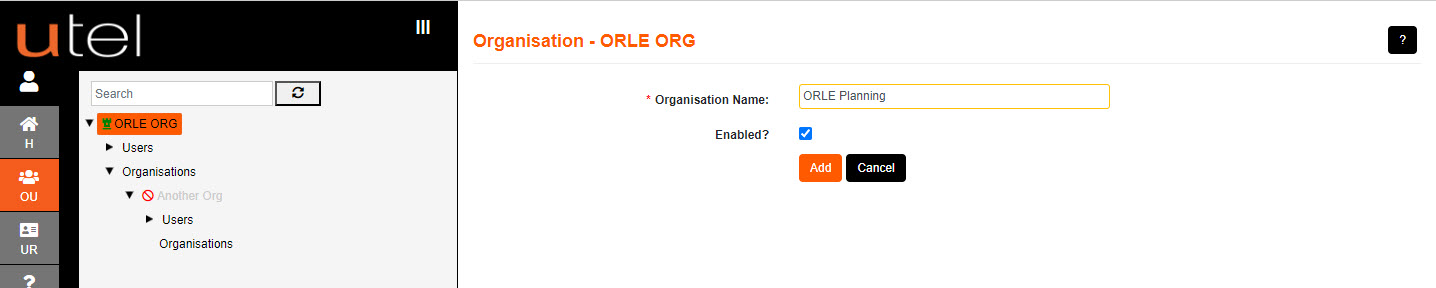
The new Organisation should now appear in the Tree after selecting Add.
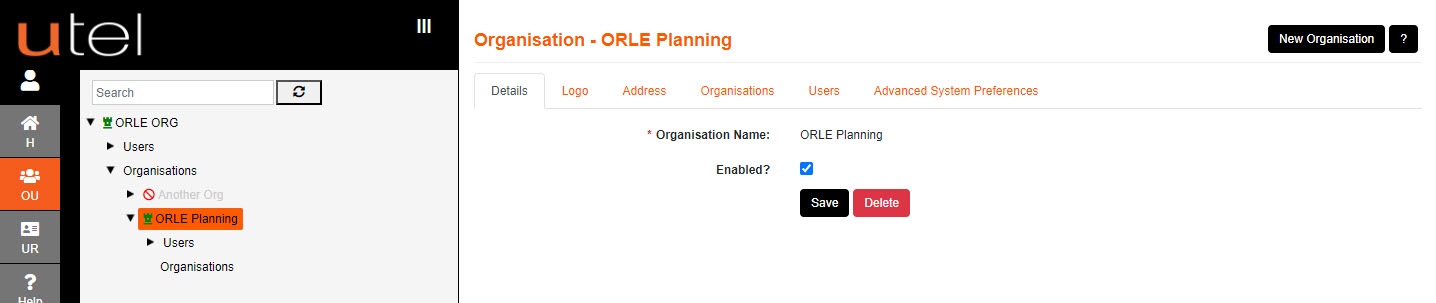
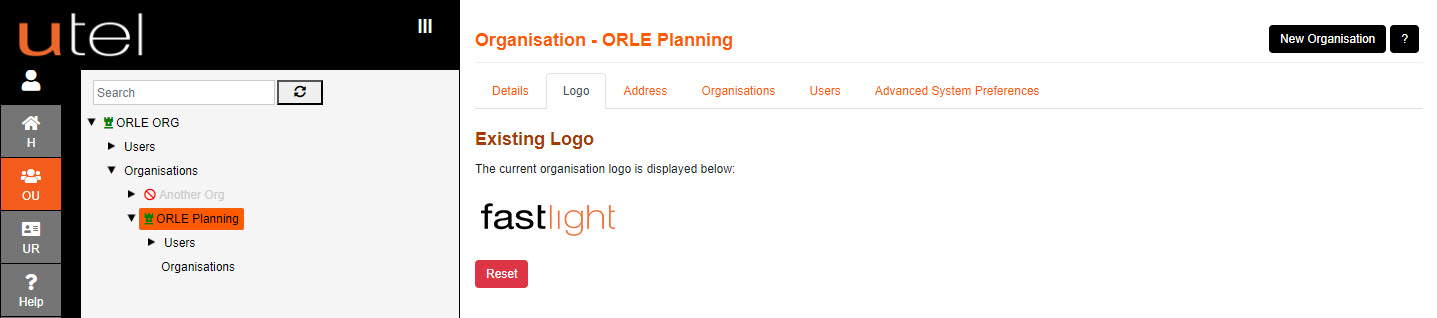
To add a unique Logo and Address - select the relevant tab.
These details will be used on all report printouts.
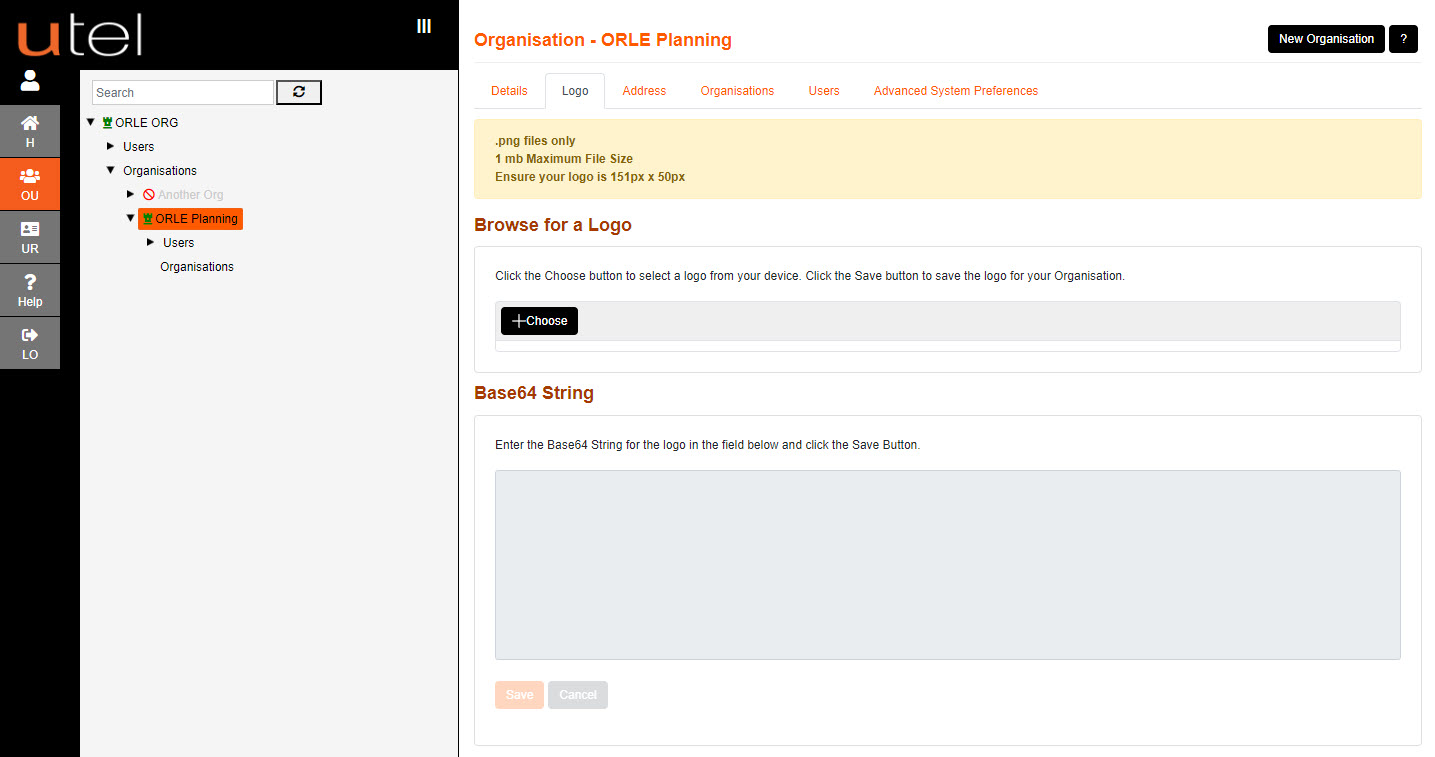
Logos need to be in PNG format (151 x 50 pixels), using a website like https://www.base64-image.de/ to create one.
Select '+ Choose' to navigate to your .png logo in it's file location.
Select it and and Save.
Alternatively there is the option to create a logo using a Base64 String - paste it in the box and Save.
Once the Logo is saved, there is an option to Reset it at any time.
Navigate to the Address tab. Add four address lines into your Address box and Save.